Skip to content

Help center

How it works

A complete guide to Web Monitor: every screen of the side panel, every option of the builder and every page of the dashboard, with real examples. Search, or pick a section.

Getting started

What Web Monitor is, how its parts fit together, and your first monitor in a couple of minutes.

Overview

Web Monitor watches any element of any page (prices, stock, text, lists, images) and alerts you when it changes the way you said. It has two parts that stay in sync.

What each option does

Chrome extension
Where you set monitors up and where checks run, in your own browser and with your session, so pages you are signed in to work too.
Dashboard
Where you follow everything: history, alerts, screenshots, channels and your account.
Your first monitor

A monitor watches one page for you: it checks it on a schedule and alerts you when what you picked changes the way you said. You can set one up by hand, as below, or ask the assistant.

Step by step

  1. 1Open the page you care about in Chrome.
  2. 2Click the extension's icon in the toolbar, then “Create monitor”. The side panel opens with the builder.
  3. 3In “Area”, click “Add elements from the page” and pick what to watch, or keep the whole page.
  4. 4In “Conditions”, add when you want to be alerted, or leave it empty to hear about any change.
  5. 5Check “Frequency” and “Notifications”, then click “Start watching”. The first check runs at once.

Toolbar popup

Click the extension's icon in Chrome's toolbar for a quick view without opening the side panel.

What each option does

This page
The monitors of the page in front, with buttons to pause or resume them and to edit them visually in the side panel.
Active monitors
Every monitor that is running, to open it in the dashboard.
Speaker button
Stops an alert sound that is playing. It lights up while one plays.

Alerts and sounds

When a monitor's conditions are met, an alert goes out on every channel you chose for that monitor. Checks that only record a change, without meeting the conditions, never notify you: you find them in the history and the activity page.

What each option does

Browser notification
Shows what changed, before and after. Clicking it opens the monitor in the dashboard and stops the sound.
Sound
Every alert plays a sound: sound 1 by default, sound 2 to 4, or an audio file of your own (kept in that browser only). Stop it with the speaker button of the toolbar popup.
Other channels
Email, webhooks, a screenshot and opening the page are turned on per monitor, in the builder's Notifications section.

Side panel

The side panel opens next to the page you are on. It knows which page that is, so it shows what you can do there and the monitors you already have for it.

This page

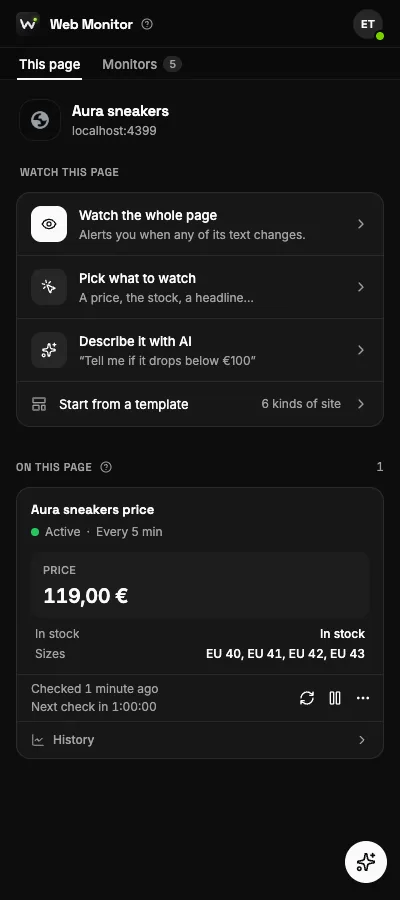
The panel's first tab is about the page in front of you: start watching it, and see the monitors you already have for it.

The This page tab, with a monitor's card: its latest value, schedule and actions.

Step by step

  1. 1Open the side panel on any website: “This page” shows what you can do there.
  2. 2Click “Watch this page” to start a monitor, or ask the assistant.
  3. 3If the extension asks, click “Allow access”: it needs it to read sites in the background.
  4. 4Your monitors for this page appear below, with their latest value, the last and next check, and their actions.

Assistant

The assistant sets monitors up from a sentence. It sees the page you are on, so it finds the right element on it, and it edits the same monitor you see in the builder. It can also change a monitor you already have on this page.

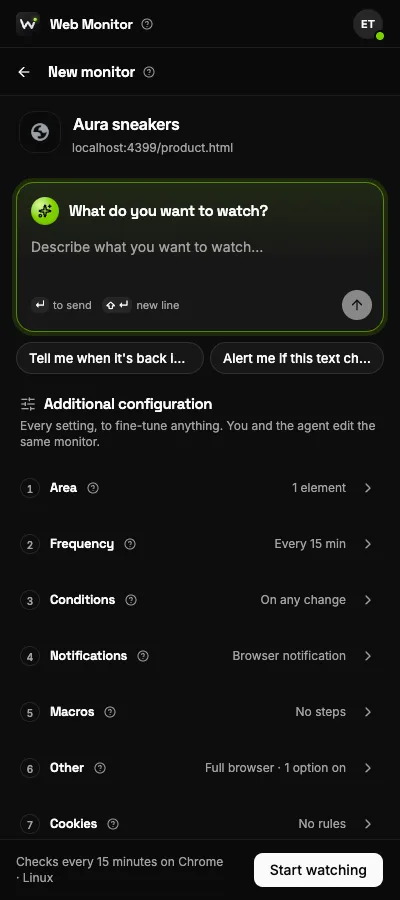
The builder in the side panel, with the assistant's box at the top and the numbered sections below.

Step by step

  1. 1Open the side panel on the page you want to watch and click the assistant's button (bottom right), or write in the box at the top of the builder.
  2. 2Describe what you want to know, in your own words and language.
  3. 3The assistant reads the page and fills the builder: what to watch, the conditions, the frequency and the notifications.
  4. 4Review each section. Change anything you like by hand, or ask the assistant for a change (“check every 5 minutes instead”).
  5. 5Save the monitor.

Monitors tab

The panel's “Monitors” tab shows all your monitors, from any page, with their latest value.

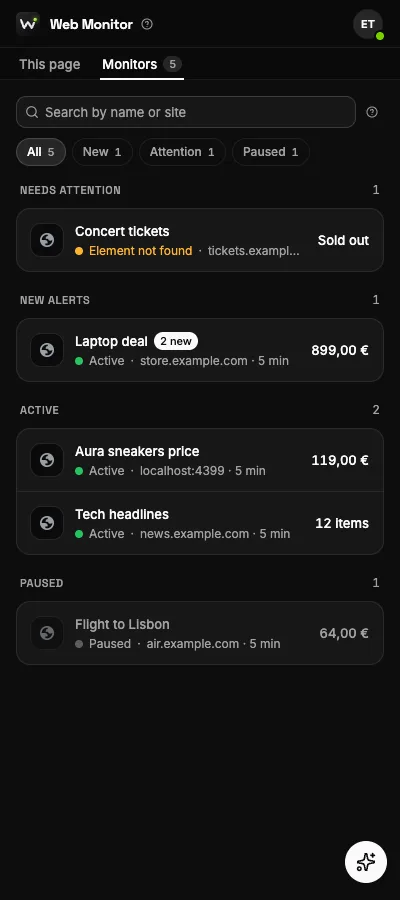
The Monitors tab: search, filters and monitors grouped by what they need.

What each option does

Groups
Monitors are grouped: needs attention, new alerts, active and paused, each with its count.
Search and filters
Search by name or site, and one-tap filters (New, Attention, Paused).
Quick actions
Hover a row for check now, pause or resume, and the menu: edit, open in the dashboard, mark as read, delete.

Macros

Macros are saved sequences of steps (clicks, typing, waits) that several monitors can share. You record them by doing the steps once on the page.

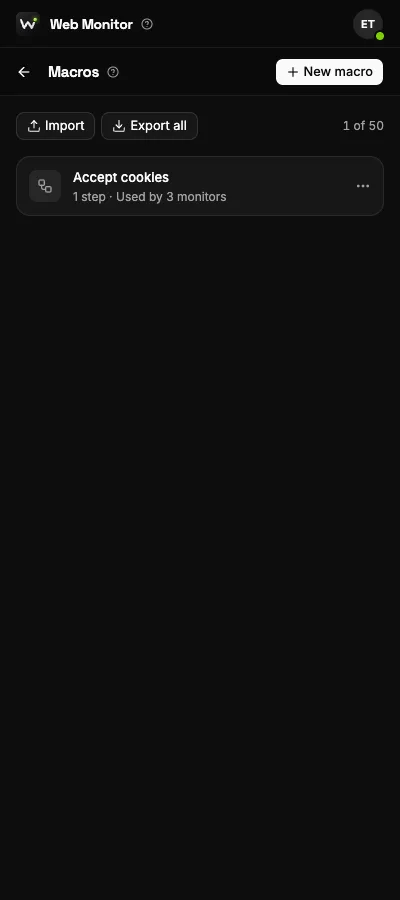
The Macros page of the side panel.

Step by step

  1. 1Open the panel's menu (your account, top right) and choose “Macros”.
  2. 2Click “New macro” and start recording, then do the steps on the page.
  3. 3Stop the recording, give the macro a name and save it.
  4. 4In a monitor's “Macros” section, choose the macro to run it before each check.

Monitor builder

The builder opens in the side panel whenever you create or edit a monitor. It has numbered sections that read top to bottom; the first ones are open, the rest fold away until you need them. You and the assistant edit the same monitor, so you can mix both.

Area: what to watch

The area is what the monitor reads on the page. Each element you pick becomes a target, with a name and a live preview of its value; the conditions compare these values from one check to the next.

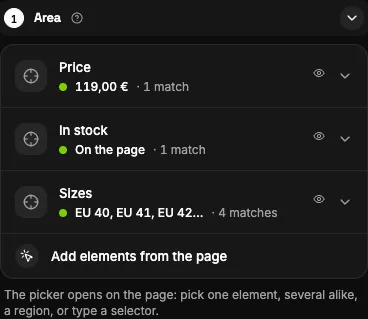
The Area section: the elements picked on the page, each with its live value.

Step by step

  1. 1Click “Add elements from the page”.
  2. 2Hover the page: the element under the pointer lights up. Click the one you want to watch.
  3. 3Check its live value under the element's name. If it isn't the right one, remove it and pick again.
  4. 4Choose how to read it (“Read as”), for example “Price” for a price.

What each option does

Whole page
The whole visible text of the page. The default, and handy when you don't know yet what will change.
Add elements from the page
Opens a picker on the page: hover and click the element you want. Add as many as you need; each one becomes a target with its own live value.
Read as
Text, Number, Price, Visible on the page (present or absent), List (every matching item), Number of elements, Attribute (a hidden value like a link) or Image.
Find it by
A CSS selector, an XPath or a text on the page, with fallbacks if the site changes its layout.
Pattern and ignore
Optional regular expressions: one to extract part of the text, others to ignore noise such as dates or counters.

Conditions: when to alert

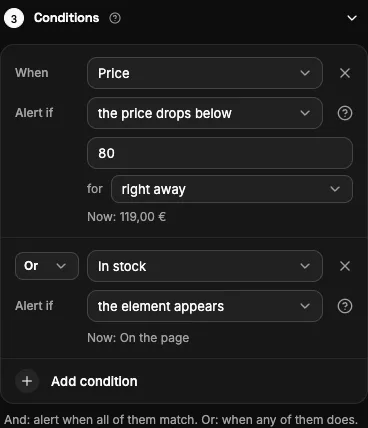
Conditions decide when a change becomes an alert. Without them, any change alerts you. With them, every change is still recorded in the history, but only the ones that meet the rules notify you.

The Conditions section with a rule on the price.

Step by step

  1. 1Click “Add condition”.
  2. 2Choose the target, the condition and, when it needs one, the value (for example “below” and “80”).
  3. 3Add more rules and choose “And” or “Or” between them.
  4. 4Optionally, set how long it must last before alerting.

What each option does

On any change
No rule: any change of any target is an alert.
Rules for text, numbers and prices
Changed, increased, decreased, below, above, equals, is not, contains, doesn't contain, matches a pattern, changes by a percentage.
Rules for presence and lists
Appears and disappears for “Visible on the page”; added and removed for lists.
And / Or
“And” alerts only when every rule holds; “Or” when any of them does.
How long it must last
The rule must keep holding for a while (for example 15 minutes) before the alert goes out. Filters out values that flicker.
AI condition
A question in plain words (“Is size 42 available?”) answered by AI with your own OpenAI key, only when the element changes.

Frequency: how often to check

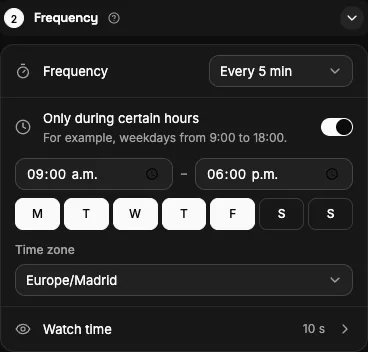
How often the page is checked, and when. Checks run in your browser while Chrome is open; the countdown in the panel shows when the next one is due.

The Frequency section: the interval, active hours and watch time.

What each option does

Every
From seconds to days. Your plan sets the shortest interval you can choose.
Only during certain hours
Checks run only on the days and between the hours you choose, in your time zone.
Watch time
After the page loads, it is watched for these seconds, so content that appears late (live scores, queues) is read too.

Notifications: where alerts go

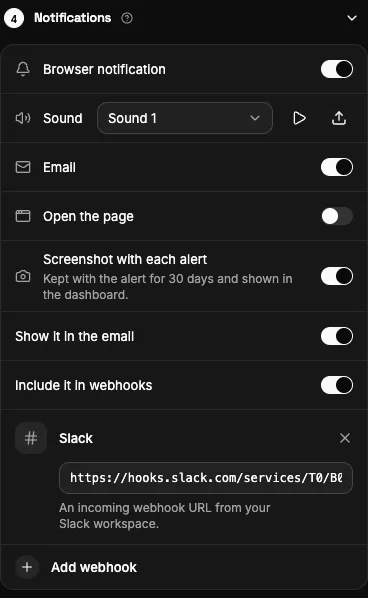
Where the monitor's alerts go. Turn on as many channels as you like; they all fire together for each alert.

The Notifications section: browser and sound, email, opening the page, screenshot and webhooks.

What each option does

Browser and sound
A Chrome notification with what changed, and its sound: sound 1 to 4 or your own file. The play button lets you hear it.
Email
An email to your account's address, once it is verified.
Open the page
The page opens in a new tab as soon as the alert goes out, so you can act at once (tickets, limited drops).
Screenshot
A capture of the page with each alert, kept 30 days. It appears in the dashboard and, if you want, in the email and webhooks. Needs full-browser reading.
Webhooks
Slack, Discord, Microsoft Teams, Telegram, phone push with ntfy, Zapier, Make or your own HTTPS address. Pick one you saved or paste a new address.

Steps and macros

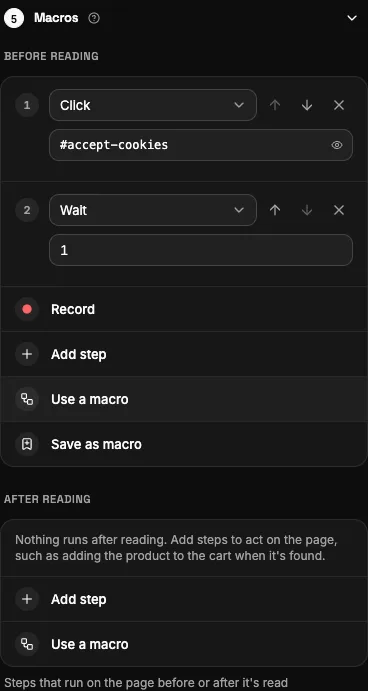
Steps prepare the page the way you would before reading it: close a cookie banner, choose an option, search for something, sign in. They need full-browser reading.

The Macros section: steps before reading, saved macros and recording.

What each option does

Steps before reading
Click, type, wait, wait for an element, scroll, press a key. They run in order, each one on an element you pick.
Record
Do the steps once on the page while the recorder is on; they are saved as a macro.
Macro
A saved macro, shared by every monitor that uses it. Edit it once and they all change.
Steps after reading
Steps after reading, on every check or only when an alert goes out: add to cart, book a slot.

Cookies

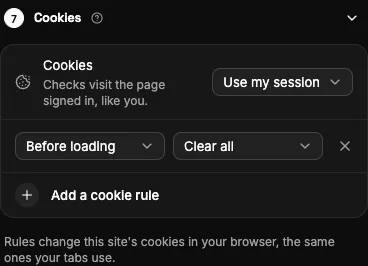
Cookie rules change the site's cookies around each check. They are for sites that show different content depending on cookies: a region, a currency, a returning-visitor price. Most monitors don't need them.

The Cookies section.

What each option does

Set / Delete / Clear
Set a cookie with a name and value, delete one cookie, or clear every cookie of the site.
When
Before the page loads, while it loads (after the first load) or after the check.

Other options

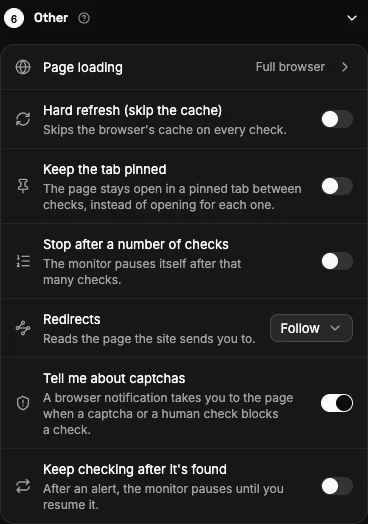
Everything else that shapes a check: how the page loads, what happens after an alert, and switches for difficult sites.

The Other options section.

What each option does

Keep checking after it's found
Off (the default for new monitors): the monitor pauses after its first alert. On: it keeps checking, optionally after a wait.
Keep the tab pinned
The page stays open in a pinned tab between checks. On each check it is reloaded, the site's own button is clicked, or it is watched live.
How to load it
Full browser opens the page as you see it, scripts included (needed for steps and screenshots). Fast fetch downloads only the HTML: lighter, but content built by scripts is missing.
Tell me about captchas
A browser notification takes you to the page when a captcha blocks the checks, so you can solve it.
Redirects
Follow the redirect and read the new page, or stop and tell you.
Safety and comfort
Hard refresh (skip the cache), stop after a number of checks, extra wait before reading, and a visual countdown over the page.

Dashboard

The web app is where you follow everything your monitors find, set up where alerts go, and manage your account. It is always in sync with the extension.

Monitors

The dashboard's home lists every monitor with its status, last check and unread alerts. The numbers on top sum up this week: checks, alerts and failures.

What each option does

Tabs
All, active, paused, needs attention (a check fails) and unread (has new alerts), each with its count.
Search and filters
By name or address, and by browser when you have more than one.
Bulk actions
Select several rows to pause, resume or delete them at once.
Export and import
Export your monitors to a file and import them into another account.

A monitor's page

Everything about one monitor: what it reads now, how it has changed over time and what it sent you.

What each option does

Overview
Current values of each target, a chart of past readings, and the latest checks with their result.
Changes
Every change with before and after, its screenshot, and where each alert was delivered (browser, email, webhooks).
Actions
Check now, pause or resume, edit in the web app, or “Edit visually” to open the builder in the extension on the page.

Activity

The activity page lists every change your monitors detected, newest first, grouped by day. Each row shows what changed (before and after), whether it was an alert, and the screenshot of the page when the monitor takes them. A dot marks alerts you haven't seen yet.

What each option does

All / Alerts / Recorded
“Alerts” are changes that met a monitor's conditions and notified you. “Recorded” are changes that were saved to the history but didn't match the conditions.
Period
Last 24 hours, 7 days, 30 days or all the time the history keeps.
Monitor
Only the changes of one monitor.
Search
Looks in monitor names and in the values that changed, before and after.

Notifications

The channels your alerts use besides the browser, set up once for all your monitors. Each monitor then chooses which ones to use.

What each option does

Email
Where alerts go, whether the address is ready, a test email, and this month's emails.
Webhooks
The services webhooks reach, a test send to any address, and this month's quota.
Saved webhooks
Webhooks your monitors use are saved here automatically. Add, test, rename or remove them; the builder lets every monitor pick from them.

Integrations

Bring your own AI key and reach your data from other tools.

What each option does

AI key
Connect your own OpenAI key so AI conditions can answer questions about the page. It is stored encrypted and only used for your monitors.
API keys
Create keys to read your monitors, changes and alerts from your own tools, and revoke them at any time.
Automation guide
How to plug alerts into Zapier, Make or your own scripts.

Devices

Each Chrome you connect to your account is a device. Checks run inside a browser, so this page shows which ones are working for you.

What each option does

Browsers
Every Chrome connected to your account, with the last time it was active.
Rename and remove
Give a browser a name you recognize, or remove one you no longer use. A removed browser stops running checks.

Settings

Preferences that apply in every browser you connect to your account.

What each option does

Language
The language of the dashboard and the extension, or automatic (your browser's).
Desktop notifications
Turn Chrome notifications on or off for every monitor at once.
Unread badge
The number of unread alerts on the extension's icon.
Keep monitored tabs awake
Stops Chrome from unloading the tabs being read, so full-browser checks finish.

Plan and usage

Your plan and what you have used this month.

What each option does

Limits
How many monitors you can have, how often they can check, and how many emails and webhooks a month.
Usage
Live meters of this month's use.
Back to top